You do not need a teacher, a school or a class code to use Afripraat. A learner (or a parent setting things up for one) can create an account on their own, choose a plan, and start practising with every vocabulary and grammar pack. This guide walks through each step with screenshots.
Download this guide as a PDF to print or send on WhatsApp.
Step 1: Open the website and tap "Get started"
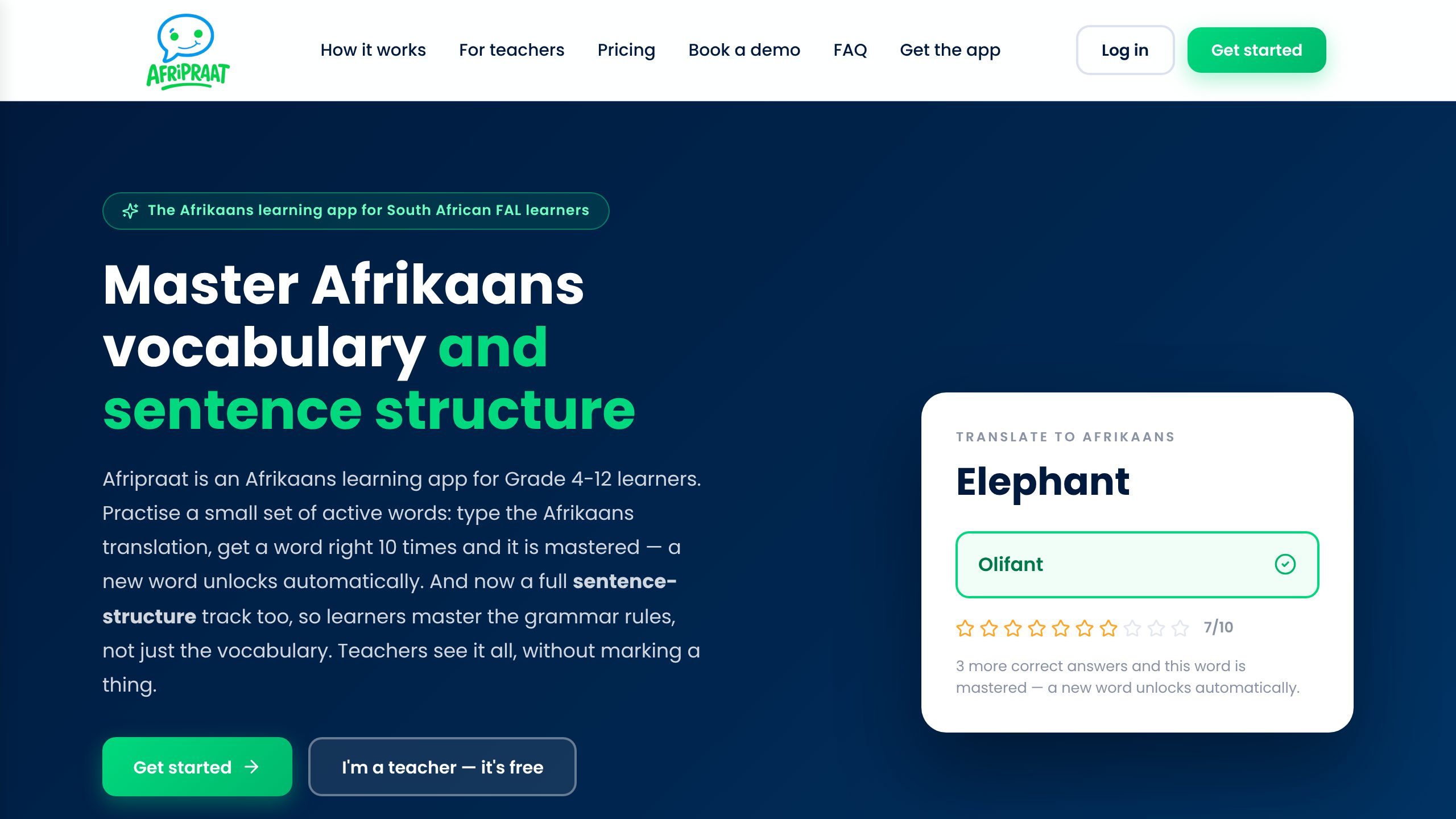
Go to afripraat.co.za in any browser on a phone, tablet or computer. Tap the green Get started button, either at the top right or just below the heading. On a phone the top button sits inside the menu.
Step 2: Fill in the "Create Account" form
The form below appears. If it says "Welcome Back!" instead, tap Sign up at the bottom to switch to the sign-up form.
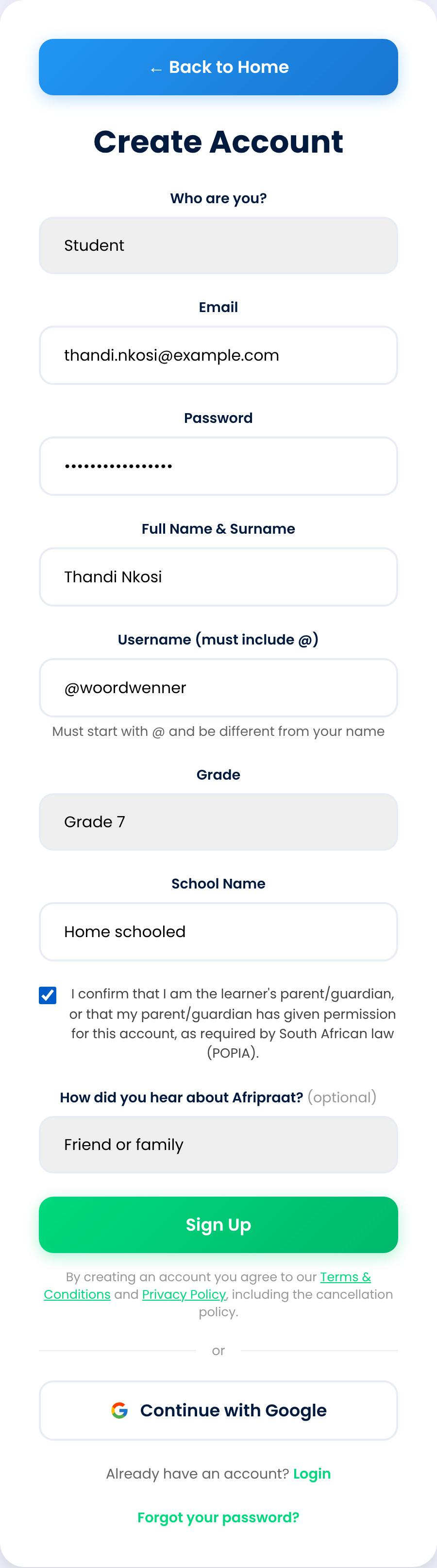
Here is what each field means:
- Who are you? Choose Student. This is the account that does the learning, even if a parent is filling in the form. (A parent who wants to follow along can create a separate Parent account later; see the questions at the end.)
- Email. The address you will log in with. Password reset emails go here, so use one you can open.
- Password. At least 6 characters. Pick something you can remember or write it down somewhere safe.
- Full Name & Surname. The learner's real name, used on reports and certificates.
- Username. Must start with @, for example @woordwenner. It is what other learners see on leaderboards, so it must not contain the learner's name or surname.
- Grade. The learner's current grade, from 4 to 12. This chooses which word packs you see first.
- School Name. The school the learner attends. Not at a school? Type Home schooled or the name of your tutoring centre. It is a required field but does not link you to anyone.
- Consent box. South African law (POPIA) needs a parent or guardian to agree to a learner's account. Tick it once you have that permission.
- How did you hear about Afripraat? Optional. Leave it as it is if you prefer.
Tap Sign Up. Your account is created straight away and you move on to the next screen.
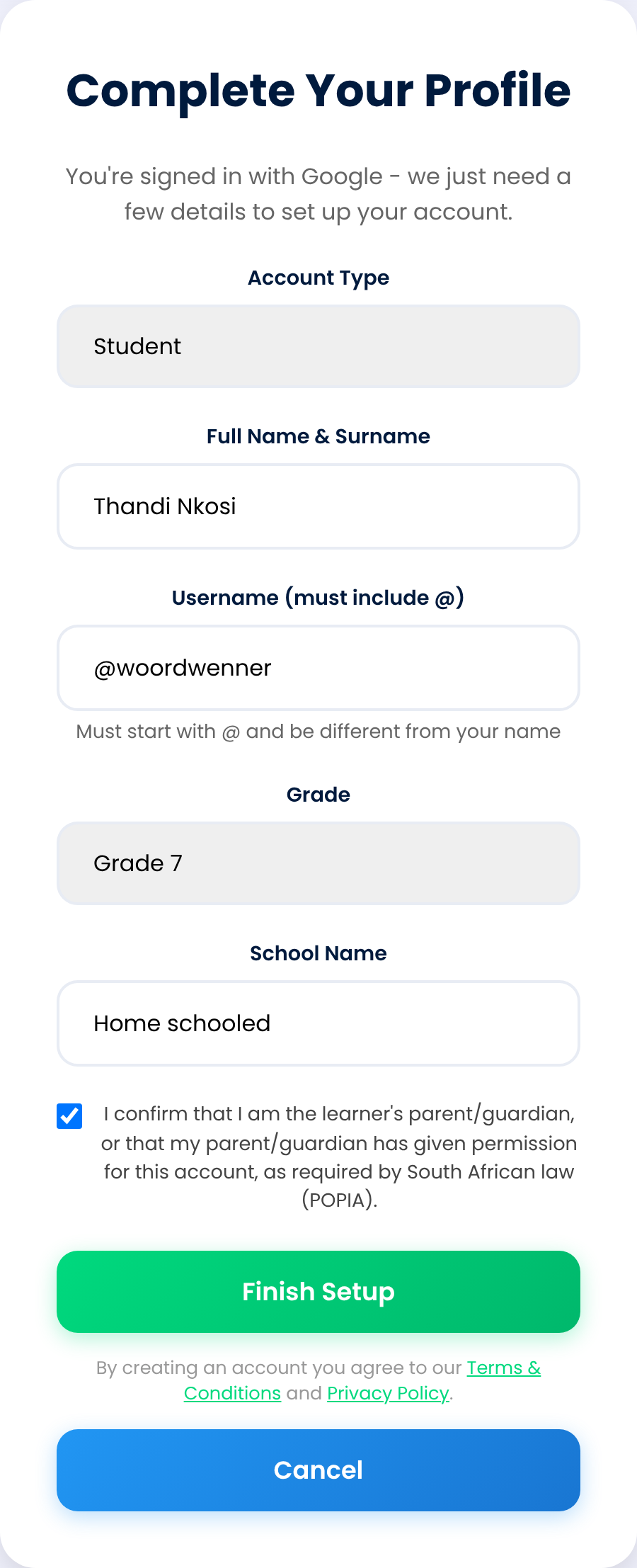
Prefer to use a Google account?
Tap Continue with Google instead of filling in the email and password fields. After Google signs you in, Afripraat asks for the same details on a short "Complete Your Profile" screen. Choose Student, fill in the name, username, grade and school, tick the consent box and tap Finish Setup.
Step 3: Choose a plan or redeem a voucher
Afripraat is free for teachers, and learners pay for their own access. Right after sign-up you see the plan screen below. There is nothing to unlock with a class code; a class code never gives access on its own.
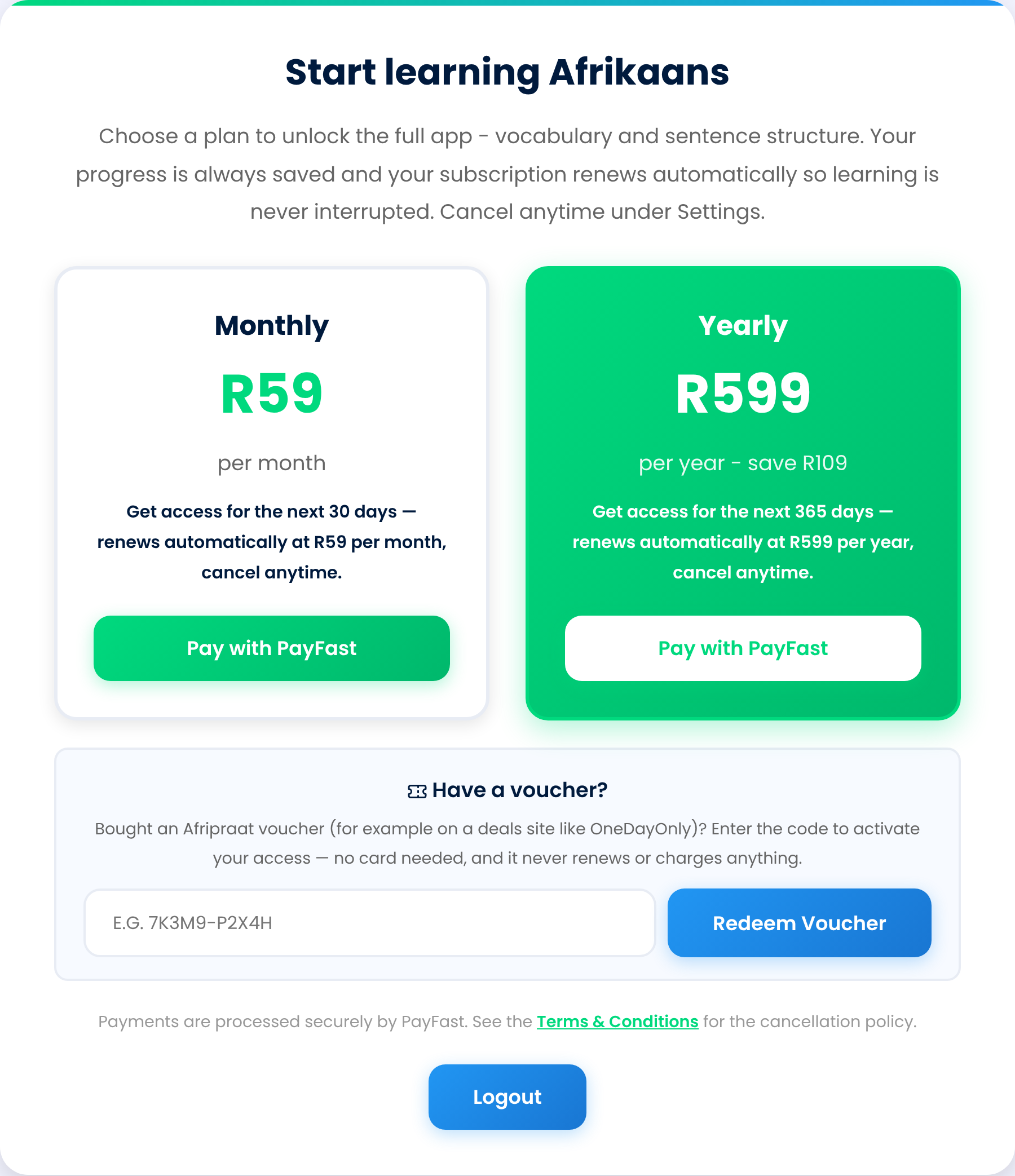
- Monthly (R59) or Yearly (R599): tap Pay with PayFast under the plan you want. PayFast opens, you pay by card, and PayFast sends you back to Afripraat. Access switches on within a minute or two. If it has not appeared, log out and log in again.
- Have a voucher? If you bought an Afripraat voucher on a deals website, type the code into the voucher box and tap Redeem Voucher. No card is needed and nothing renews.
A subscription renews automatically so that learning is never interrupted. You can cancel at any time under Settings; billing then stops and access runs until the date you have paid for.
Step 4: Start learning
Your dashboard opens with every vocabulary and grammar pack for your grade available. Practise by typing the Afrikaans translation of each word; get a word right ten times and it is mastered, and a new one takes its place.
Below the dashboard you will see this button. It is optional. Ignore it unless a teacher gives you a code one day; you can join a class at any time later without losing your progress.

Ready to start?
Go to afripraat.co.za, tap Get started, and you can be practising your first words in under five minutes.
Create your accountCommon questions
Do I need a class code at all?
No. A class code only links a learner to a teacher so the teacher can assign packs and see progress. Learning on your own works exactly the same, with all the packs for your grade.
I got a class code later. What now?
Log in, tap Join a Classroom (Optional) on your dashboard, enter the 6-character code and wait for the teacher to accept you. Your progress and subscription stay as they are.
Can a parent see how the learner is doing?
Yes. The parent creates their own account with Parent chosen under "Who are you?". The learner then goes to Settings, finds "Link a parent or guardian", enters the parent's email address and sends the request. Once the parent accepts it, they see a simple progress summary.
Which email address should a young learner use?
Any address a parent can read works well. Password resets and account notices go to it, so it should be checked now and then.
What happens when I cancel?
Open Settings and cancel the subscription. No further payments are taken, and the learner keeps access until the end of the period already paid for.
Something went wrong during sign-up
Email info@afripraat.co.za and tell us the email address you used. We will sort it out.